Few things are as frustrating as a device with a touch screen that simply won’t respond. Whether you’re trying to send an urgent message, adjust your oven’s temperature, or control industrial machinery, an unresponsive touch interface can bring productivity to a halt and test your patience. It’s a common issue that spans across smartphones, tablets, smart home appliances, and even specialized industrial panels. But before you panic or consider a costly replacement, many unresponsive touch control problems can be resolved with some straightforward troubleshooting steps.
This guide will walk you through the most common reasons why your touch controls might stop working and provide practical, step-by-step solutions to get them back in action. From simple cleaning techniques to more advanced software and hardware checks, we’ll help you diagnose the problem and hopefully restore full functionality to your device.
Understanding Why Touch Controls Fail
Touch control technology, while seemingly simple, relies on a sophisticated interplay of hardware and software. Most modern devices use capacitive touchscreens, which detect electrical changes when your finger (a conductor) makes contact with the screen. Resistive touchscreens, often found in older devices or industrial applications, work by pressing two conductive layers together. When either of these systems encounters an issue, whether internal or external, the touch controls can become unresponsive.
Common Causes of Unresponsive Touch Controls
Several factors can lead to your touch controls failing to register input. Understanding these underlying causes is the first step toward finding a solution:
- Software Glitches and System Freezes: Like any computer system, devices with touch controls are susceptible to software bugs, operating system errors, or app conflicts that can cause the screen to freeze or become unresponsive.
- Physical Obstructions: Dirt, grease, moisture, or even a poorly fitted screen protector or case can create a barrier between your finger and the touch sensor, preventing accurate input.
- Hardware Malfunctions and Damage: Physical impacts, drops, manufacturing defects, or general wear and tear can damage the touch panel, digitizer (the component that translates touch into signals), or internal connections.
- Power Issues: For appliances and some devices, an inconsistent or insufficient power supply, a blown fuse, or faulty wiring can prevent touch controls from functioning correctly.
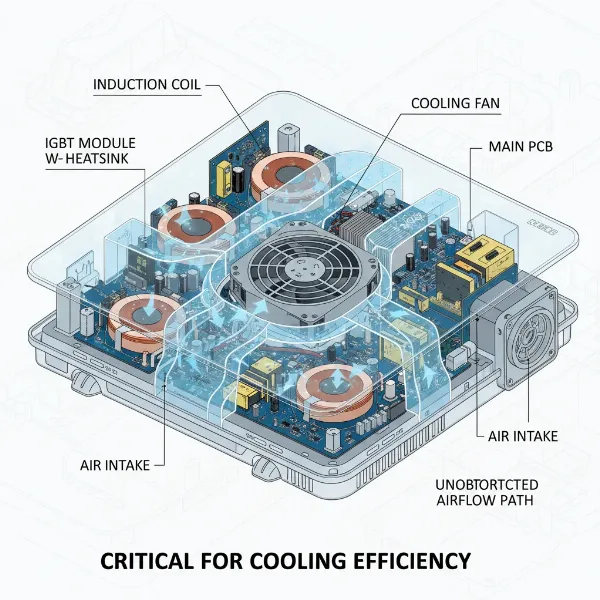
- Overheating: Prolonged use or a malfunctioning cooling system can cause a device to overheat, leading to temporary unresponsiveness or other performance issues.
- Driver Issues (for computers/laptops): On Windows devices, outdated, corrupted, or missing touch screen drivers can prevent the touch interface from working properly.
- Calibration Problems: While less common in modern smartphones, some touchscreens, particularly older models or specialized industrial panels, may require recalibration to accurately register touches.
|
Our Picks for the Best Induction cooktop in 2026
As an Amazon Associate I earn from qualifying purchases.
|
||
| Num | Product | Action |
|---|---|---|
| 1 | ChangBERT Portable Induction Cooktop Enhanced Version, One-Click Max Power 1800W Large Heating Coil Burner, Precise Temperature Control, NSF Certified Commercial Grade Low Noise Hot Plate |

|
| 2 | Duxtop 1800W Portable Induction Cooktop Countertop Burner, Gold 8100MC/BT-180G3 |
|
| 3 | ChangBERT Induction Cooktop, Commercial Grade Portable Cooker, Large 8” Heating Coil, Premium Stainless Steel Countertop Burner with NSF Certified, 10 Hours Timer Powerful 1800W Professional Hot Plate |
|
| 4 | Amazon Basics 1800W Portable Electric Induction Cooktop, Burner and Child Lock, Overheat Protection, Timer, 8 Power Settings, Temperature Control Up to 440°F, for Cookware Diameter 5.7"-8.2", Black |
|
| 5 | Nuwave Pro Chef Induction Cooktop, NSF-Certified, Commercial-Grade, Portable, Powerful 1800W, Large 8” Heating Coil, 94 Temp Settings 100°F - 575°F in 5°F, Shatter-Proof Ceramic Glass Surface |
|
| 6 | Nuwave Double Pro Cooktop Induction Countertop Burner, Portable, 900/1500/1800W with Dynamic Watt Technology, 50°F to 575°F, 8” Heating Coil, Shatter-Proof Ceramic Glass, Seamless IMD Touch Panel |
|
| 7 | ChangBERT Induction Cooktop NSF Certified Professional Chef Edition Stove, 1800W Commercial Induction Burner with Schott Glass, Large Heating Coil Electric Hot Plate for Restaurant Hotel Food Station |
|
| 8 | Duxtop Portable Induction Cooktop, Countertop Burner Induction Hot Plate with LCD Sensor Touch 1800 Watts, Silver 9600LS BT-200DZ |
|
| 9 | Empava Portable Induction Hot Plate Cooktop, Single 1 Burner Countertop Cooker, 3 Preset Modes, Shatter-proof Flat Glass Top, 110~120 Volt Plug in Electric Stove for Kitchen, Outdoor Camping, RV |
|
| 10 | Nuwave Flex Precision Induction Cooktop, 10.25” Shatter-Proof Ceramic Glass, 6.5” Heating Coil, 45 Temps from 100°F to 500°F, 3 Wattage Settings 600, 900 & 1300 Watts, Black |
|
Step-by-Step Troubleshooting for Unresponsive Touch Controls
When your touch controls stop responding, start with the simplest solutions and work your way through more complex steps.
Initial Checks: The Basics First
These preliminary checks can often resolve common issues quickly.
- Clean Your Screen Thoroughly: Accumulated dirt, dust, fingerprints, or grease are frequent culprits. Use a soft, lint-free microfiber cloth. If necessary, slightly dampen the cloth with water or a screen-safe cleaning solution. Avoid abrasive materials or harsh chemicals that could damage the screen.
- Remove Screen Protectors and Cases: A thick or improperly installed screen protector, or a bulky case, can sometimes interfere with touch sensitivity. Remove them temporarily to see if the problem resolves. If it does, consider a thinner protector or a different case.
- Check for Physical Damage: Inspect your device’s screen carefully for any visible cracks, chips, or severe scratches. Even minor damage can sometimes affect touch functionality.
- Ensure Hands are Clean and Dry, Remove Gloves: Capacitive touchscreens rely on the electrical conductivity of your skin. Wet hands, dirty fingers, or wearing most types of gloves will prevent the screen from registering your touch.
Software Solutions: Addressing Glitches
Many unresponsive touch issues stem from software problems that can be fixed without hardware intervention.
- Restart Your Device (The Universal Fix): This is often the simplest and most effective solution for minor software glitches.
- For most smartphones/tablets: Press and hold the power button until the device offers a restart or power off option. If the screen is completely unresponsive, you may need to perform a force restart.
- Force Restart (varies by device):
- iPhones (iPhone 8 and later): Quickly press and release Volume Up, then Volume Down, then press and hold the Side button until the Apple logo appears.
- Android devices: This combination often involves holding the power button and volume down button simultaneously for about 10-15 seconds. Check your device’s manual for the exact combination.
- Boot into Safe Mode (Android/Windows): If an app you recently installed is causing the problem, Safe Mode can help you identify it. In Safe Mode, only essential system applications run, disabling third-party apps.
- If your touch screen works in Safe Mode, a recently installed app is likely the cause. Exit Safe Mode and uninstall recently downloaded applications one by one until the issue is resolved.
- Update Operating System and Drivers: Ensure your device’s operating system (iOS, Android, Windows) is up to date. Software updates often include bug fixes and performance improvements that can address touch screen issues. For Windows devices, regularly check for and install updated touch screen drivers via Device Manager or Windows Update.
- Adjust Touch Sensitivity Settings: Some devices, particularly iPhones with 3D Touch or certain Android models, allow you to adjust touch sensitivity. Navigate to your device’s accessibility settings to see if this option is available and try adjusting it.
- Clear Cache: For specific apps (like Chrome’s “Touch to Search” feature) or the overall system, clearing the cache can resolve responsiveness issues caused by corrupted temporary files. This can usually be done through the app settings or device storage settings.
- Disable Developer Options: If you’ve previously enabled Developer Options on an Android device, sometimes certain settings within this menu can interfere with normal touch functionality. Navigate to Settings > System > Developer options and toggle them off.
Hardware-Related Troubleshooting (Proceed with Caution)
If software solutions haven’t worked, the problem might be hardware-related. These steps require more care.
- Check Power Supply (for Appliances): For home appliances with touch controls, ensure they are receiving adequate power. Check the power cord, wall outlet, and any circuit breakers or fuses. A fluctuating or insufficient power supply can cause touch panels to malfunction.
- Dry Out Your Device: If your phone or tablet has recently been exposed to moisture, it could be the cause. Power off the device immediately, remove any removable parts (SIM card, battery if possible), and allow it to dry thoroughly in a well-ventilated area for at least 24-48 hours. Avoid using heat sources like hair dryers.
- Gently Tap the Corners (for Dropped Devices): If the touch screen became unresponsive after a drop, the digitizer’s internal connection might have come loose. Very gently tapping on each corner of the phone (while the device is powered off) might help reconnect it. This is a temporary and risky fix; proceed with extreme caution.
- Remove External Peripherals: In rare cases, connected peripherals (like USB devices, external memory cards, or even SIM cards) can cause interference. Power down your device and remove them to see if the touch controls resume functionality.
When to Seek Professional Repair
While many touch control issues can be resolved at home, there are times when professional help is essential.
You should seek expert repair services if:
- There is clear physical damage to the screen (cracks, severe impact).
- None of the troubleshooting steps have worked, and the screen remains completely unresponsive.
- The issue is intermittent and recurring despite your best efforts.
- You suspect a complex internal hardware problem, such as a faulty digitizer or motherboard connection, that requires specialized tools and expertise to fix.
Attempting complex DIY repairs without the proper knowledge or tools can often cause further damage, voiding warranties and increasing repair costs.
Frequently Asked Questions (FAQ)
What is the difference between capacitive and resistive touchscreens?
Capacitive touchscreens, common in modern smartphones, detect touch through electrical changes when a conductive object (like your finger) interacts with the screen. Resistive touchscreens, found in older devices or specific industrial applications, work by pressing two conductive layers together, registering touch based on the pressure applied.
Can a factory reset fix an unresponsive touchscreen?
A factory reset can often resolve touch screen issues caused by deep-seated software glitches or corrupted system files. However, it will erase all data on your device, so always back up your important information before performing a factory reset. If the problem is hardware-related, a factory reset will not help.
How often should I clean my device’s touchscreen?
It’s a good practice to clean your device’s touchscreen regularly, ideally every few days or whenever you notice smudges or grime. A quick wipe with a microfiber cloth can prevent dirt and oil buildup from interfering with touch responsiveness and maintain screen clarity.
Is it safe to try DIY repairs for touchscreen issues?
Simple troubleshooting steps like cleaning the screen, restarting the device, or checking software settings are generally safe for DIY. However, attempting complex hardware repairs, such as opening the device or replacing components, carries significant risks and should only be performed by experienced technicians to avoid further damage or injury.
Remember, an unresponsive touch screen doesn’t always mean the end for your device. Often, a systematic approach to troubleshooting can bring your controls back to life. By understanding the common causes and applying the right solutions, you can efficiently resolve most touch control problems. If all else fails, a qualified technician is your best bet to ensure your device returns to full working order.